# Introduction to Meteor Wallet

Meteor Wallet is a simple and secure wallet to manage your crypto and access decentralized applications across the NEAR blockchain.

Meteor is currently available as:

* A [browser extension](https://chrome.google.com/webstore/detail/meteor-wallet/pcndjhkinnkaohffealmlmhaepkpmgkb)
* A [web wallet](https://wallet.meteorwallet.app/)
* Apps are coming soon (Q2 2023)

### About This Guide

This documentation is aimed at new and existing Meteor Wallet users to walk them through the key functionality and features provided through our wallet.

### Just getting started with Meteor?

* [How To Create Your Free Named Wallet In 60 Seconds](/getting-started/how-to-create-your-free-named-wallet-in-60-seconds)
* [How To Import An Existing Wallet Into Meteor Wallet](/how-to-import-an-existing-wallet-into-meteor-wallet)
* [How To Buy NEAR With Meteor Top Up](/how-to-buy-near-with-meteor-top-up)
* [How To Learn & Earn Through Meteor Challenges](/how-to-learn-and-earn-through-meteor-challenges)

### The four pillars of our wallet development

Our wallet is crafted with love and our aim is to underpin NEAR's mission to achieve mass adoption.

* Smooth Onboarding Experience
* Simple & Intuitive
* Dapp Integrations
* Secure & Transparent

### We are the only wallet on NEAR that provides

* [Interpreted transaction details](/meteor-guides/understanding-your-transaction-history) when signing transaction
* [NFT portfolio](/meteor-guides/how-to-make-the-most-of-our-useful-nft-features)
* [Seed phrase update](/wallet-settings/easy-recovery-for-seed-phrases-and-private-key) (changing seed phrase)
* [Simplified transaction history](/meteor-guides/understanding-your-transaction-history)
* [NFT details](/meteor-guides/how-to-make-the-most-of-our-useful-nft-features) (metadata)
* Address book with recently used address


# How To Create Your Free Named Wallet In 60 Seconds

Named wallets are easy to remember & great for onboarding non-crypto natives to NEAR. Meteor is the only wallet that currently allows you to create free named wallets.

1. Visit <https://wallet.meteorwallet.app/> and click “Get Started”.

<figure><img src="https://3782409720-files.gitbook.io/~/files/v0/b/gitbook-x-prod.appspot.com/o/spaces%2FTmxucjoGVL8zYh63WhN6%2Fuploads%2FyeQ3uaV5EralPOSXukVJ%2Funknown.png?alt=media&amp;token=2b8b3488-35ac-4d50-994c-20afa8baabbd" alt=""><figcaption></figcaption></figure>

2\. As you’re creating a new wallet, click “Create new wallet”.\
\
Already have a wallet? See our [guide on importing an existing wallet](/how-to-import-an-existing-wallet-into-meteor-wallet).

<figure><img src="https://3782409720-files.gitbook.io/~/files/v0/b/gitbook-x-prod.appspot.com/o/spaces%2FTmxucjoGVL8zYh63WhN6%2Fuploads%2FW5uWbp6a2RNuKMcmpho1%2Funknown.png?alt=media&amp;token=ba79ff63-858d-4304-99e9-7bd04f91bd26" alt=""><figcaption></figcaption></figure>

3\. You now need to create a password to unlock your wallet.\
\
We’ll automatically check the strength of your suggested password and they match, before you can click the ‘Continue’ button.\
\
You’ll also need to tick the ‘I agree to the Terms of Service’.

<figure><img src="https://3782409720-files.gitbook.io/~/files/v0/b/gitbook-x-prod.appspot.com/o/spaces%2FTmxucjoGVL8zYh63WhN6%2Fuploads%2FNblAVtBIxGRC0sjaVJeL%2Funknown.png?alt=media&amp;token=02ca2450-b90c-426d-9568-4c93efa52a63" alt=""><figcaption></figcaption></figure>

4\. You can now enter your desired custom NEAR wallet address.

<figure><img src="https://3782409720-files.gitbook.io/~/files/v0/b/gitbook-x-prod.appspot.com/o/spaces%2FTmxucjoGVL8zYh63WhN6%2Fuploads%2FgDyoXC36e5XrfLC9cb0d%2Fchoose-wallet-name.png?alt=media&amp;token=9850b805-1aed-4978-9385-297643f9bf09" alt=""><figcaption></figcaption></figure>

Please follow the guidance for naming your custom wallet.

If you prefer to use a Traditional Crypto Wallet you also have this option. Simply select 'Use Implicit Account'.

To learn more about the difference between a ‘Traditional Crypto Wallet’ and ‘Named Wallet’, see [this guide](/difference-between-a-traditional-crypto-wallet-and-named-wallet).

If your wallet name is available, it will show in green as below.

Click Continue.

<figure><img src="https://3782409720-files.gitbook.io/~/files/v0/b/gitbook-x-prod.appspot.com/o/spaces%2FTmxucjoGVL8zYh63WhN6%2Fuploads%2FcEbP1CJsdrkBsbz5LAvJ%2Fgreen-named-wallet.png?alt=media&amp;token=47793c21-4430-40fa-8a22-ac3ee736b802" alt=""><figcaption></figcaption></figure>

5\. Finally, and this is extremely important - you are now presented with your secret recovery phrase.

<figure><img src="https://3782409720-files.gitbook.io/~/files/v0/b/gitbook-x-prod.appspot.com/o/spaces%2FTmxucjoGVL8zYh63WhN6%2Fuploads%2FiuQUHcsRUCzCyDnqwNzw%2Funknown.png?alt=media&amp;token=8fdc7cf0-c5c0-4cc2-904b-f0277804f3e4" alt=""><figcaption></figcaption></figure>

Click the eye icon to reveal your secret phrase.

<figure><img src="https://3782409720-files.gitbook.io/~/files/v0/b/gitbook-x-prod.appspot.com/o/spaces%2FTmxucjoGVL8zYh63WhN6%2Fuploads%2F5CuYTw24Xyw6fnyIwnQy%2Funknown.png?alt=media&amp;token=5ea39c6d-5679-4360-9999-ae1b46f38640" alt=""><figcaption></figcaption></figure>

\
**IMPORTANT**: You must write the 12-word phrase down somewhere safe and store in a secure place. Do not share this with anyone.

\
It’s also critical that you write this phrase down in the correct order. The number associated with each word is critical.

\
You also have the option to click ‘Generate New’ to create a new recovery phase.

\
You can also click ‘Copy’ if you wish to paste your keyphrase and print it for example. Please be very careful if you do leave an electronic copy of your passphrase on a device. We highly recommend creating a hard copy version.

Once you have stored your secret recovery phrase, tick ‘I saved my Secret Recovery Phrase’ and click ‘Continue’.

\
**IMPORTANT**: Meteor Wallet is what’s called a non-custodial wallet. This means your password and secret recovery phrase are your sole responsibility.

This means no 3rd party has access to your wallet (or its contents), unless they gain access to your recovery phrase. It also means if you lose your recovery phrase, you lose access to your wallet and your funds, forever.

6\. In order to confirm you have written down your seed phrase correctly, you’ll be prompted to select two words. This highlights why it’s critical to store your phrase in the correct order.

<figure><img src="https://3782409720-files.gitbook.io/~/files/v0/b/gitbook-x-prod.appspot.com/o/spaces%2FTmxucjoGVL8zYh63WhN6%2Fuploads%2F6A9ti57oHnuw5Pezkxhx%2Funknown.png?alt=media&amp;token=e38aac74-0a5c-48ca-b692-330a82786f0c" alt=""><figcaption></figcaption></figure>

\
Once you’ve done this, click ‘Confirm’.

7\. Congratulations! You’re set up and a proud owner of a NEAR Meteor wallet.\
\
You can now use Meteor for all your wallet needs. To join our community and ask any questions you have the option to join us on Twitter or join our Discord.

<figure><img src="https://3782409720-files.gitbook.io/~/files/v0/b/gitbook-x-prod.appspot.com/o/spaces%2FTmxucjoGVL8zYh63WhN6%2Fuploads%2Fo1KEHEdO6mEomxHJa32T%2Funknown.png?alt=media&amp;token=262ebdbb-cb61-4f41-9cef-1f1627a8d02b" alt=""><figcaption></figcaption></figure>

Click ‘Finish’

{% embed url="<https://twitter.com/MeteorWallet/status/1620543956839694341>" %}


# How Meteor keeps you and your crypto safe

You will never have to worry about the safety of your funds.

### We never have access to your private keys or funds

Meteor is a self-custodial wallet. Your private keys are encrypted on your device and and are never shared by anyone. They never leave the browser on your device.

You can [rotate and change your private keys](/wallet-settings/how-to-manage-app-access-to-your-wallet) whenever you wish.

### Your privacy is respected

Meteor Wallet does not track any personally identifiable information, account addresses or any balances.

### Ledger Support and Audit

* Our code will be audited by a leading software auditing firm.
* We will be provide Ledger support in Q2 2023.

### How we protect our wallet infrastructure and codebase

To get slightly technical for a moment.

* Our server logs are sanitized and cleansed periodically.
* We operate MFA (multi-factor authentication) setup in all infrastructures and pipelines.

### Community Trust & Experienced Team

* We have been building in the NEAR community for over a year.
* Our wallet launched six months ago and we were recently awarded to be the official maintainer of the [MyNearWallet](https://www.mynearwallet.com/).
* Our team has deep experience in building wallets.


# Difference Between A ‘Traditional Crypto Wallet’ And ‘Named Wallet’

Find out the differences between the two and how to create a new, ‘named’ wallet.

One of NEAR’s many benefits is the option to use a named wallet (i.e. joebloggs.near) versus a more traditional crypto wallet name, full of letters and numbers.

The user-friendly named wallet is easy to remember, more memorable and has branding benefits (whether you are a personal or company brand).

With Meteor Wallet you can create your named wallet for free!&#x20;

Meteor is currently the only wallet on NEAR that provides this option.

See this [step-by-step guide](/getting-started/how-to-create-your-free-named-wallet-in-60-seconds) on how to create your free named wallet.

<figure><img src="https://3782409720-files.gitbook.io/~/files/v0/b/gitbook-x-prod.appspot.com/o/spaces%2FTmxucjoGVL8zYh63WhN6%2Fuploads%2FgDyoXC36e5XrfLC9cb0d%2Fchoose-wallet-name.png?alt=media&amp;token=9850b805-1aed-4978-9385-297643f9bf09" alt=""><figcaption><p>Create your free named wallet in 60 seconds</p></figcaption></figure>


# How To Import An Existing Wallet Into Meteor Wallet

Importing your wallet is quick and simple to do. Follow the steps below.

1. The first step depends if you are adding a wallet to Meteor or you're starting from scratch:<br>

   If you already have a wallet in Meteor and are simply adding a new one, then navigate to the hamburger menu in the top left and click ‘Add Wallet’.
2. To import a new wallet, you’ll first need to enter your password.
3. You then have two options to choose from to import your wallet into Meteor.

<figure><img src="https://3782409720-files.gitbook.io/~/files/v0/b/gitbook-x-prod.appspot.com/o/spaces%2FTmxucjoGVL8zYh63WhN6%2Fuploads%2FW629wEKV36DPsMyhOvmN%2Fchoose-recovery-or-key.jpg?alt=media&amp;token=efbb4546-4ddd-41b1-88c8-9343be25b2fb" alt=""><figcaption></figcaption></figure>

**Option A** - Enter your secret recovery phrase.

**Option B** - Enter the private key to your account.\
\
Let’s go through each option.\
\
**Option A**\
\
You can enter your secret recovery phrase from wherever you have stored it securely. Then click ‘Find my account’.\
\
You’ll then be presented with the name of the wallet. Click the name of the wallet to finish importing.

<figure><img src="https://3782409720-files.gitbook.io/~/files/v0/b/gitbook-x-prod.appspot.com/o/spaces%2FTmxucjoGVL8zYh63WhN6%2Fuploads%2FUyIWIZ8NK6X7tdLoySjy%2Fsecret-phase-input.jpg?alt=media&amp;token=d29fbc4e-f8d1-4d3d-bdba-d573896b6330" alt=""><figcaption></figcaption></figure>

**Option B**\
\
You can export your local private key from the wallet you are currently using. Simply paste it in here and click ‘Find my account’.\
\
You’ll then be presented with the name of the wallet. Click the name of the wallet to complete importing.

<figure><img src="https://3782409720-files.gitbook.io/~/files/v0/b/gitbook-x-prod.appspot.com/o/spaces%2FTmxucjoGVL8zYh63WhN6%2Fuploads%2FmGS53Fi1kTrm70hCiZk3%2Frecovery-key-input.jpg?alt=media&amp;token=64f43ae0-5417-4ddb-acc6-e661f1911108" alt=""><figcaption></figcaption></figure>

Once you've chosen your import method, enter the key or secret phase and click 'Find my account'.

<figure><img src="https://3782409720-files.gitbook.io/~/files/v0/b/gitbook-x-prod.appspot.com/o/spaces%2FTmxucjoGVL8zYh63WhN6%2Fuploads%2FLG0D1gZK0HdB5M8dy5VG%2Fimport-found-account.jpg?alt=media&amp;token=02bd0c39-e68d-4d3a-be13-c06baa4fbfc9" alt=""><figcaption></figcaption></figure>

Click the account to confirm.

And you're all done. Your wallet is now imported into Meteor.

<figure><img src="https://3782409720-files.gitbook.io/~/files/v0/b/gitbook-x-prod.appspot.com/o/spaces%2FTmxucjoGVL8zYh63WhN6%2Fuploads%2Fn7JYaUn8JYRwlMgIzZ6n%2Fimport-finished.jpg?alt=media&amp;token=e020c988-9955-455c-9936-21d99ac44e14" alt=""><figcaption></figcaption></figure>


# How To Buy NEAR With Meteor Top Up

To make this process simpler you can browse buying options in-wallet.

1. To see your Top Up options click the 'Top Up' button from your wallet home page or visit <https://wallet.meteorwallet.app/wallet/deposit> in the web wallet.

<figure><img src="https://3782409720-files.gitbook.io/~/files/v0/b/gitbook-x-prod.appspot.com/o/spaces%2FTmxucjoGVL8zYh63WhN6%2Fuploads%2FCJTuOJ8eSGH0MJ7WV2W2%2Ftop-up.jpg?alt=media&amp;token=58aa794b-ccd1-4694-beb1-ed1bdd9ad815" alt=""><figcaption></figcaption></figure>

2. You'll see three options including Onramper (aggregator), Rainbow Bridge & centralised exchanges.&#x20;

<figure><img src="https://3782409720-files.gitbook.io/~/files/v0/b/gitbook-x-prod.appspot.com/o/spaces%2FTmxucjoGVL8zYh63WhN6%2Fuploads%2FFYA1KUerLFhArs3flBnO%2Ftop-up-options.jpg?alt=media&amp;token=6e1a1333-0660-4e6a-882d-d59d0a0bbdd9" alt=""><figcaption></figcaption></figure>

3. Choose the option most appropriate for your needs - see below for more information on each.

### Onramper

An aggregator lets you compare the best fees available.

You can choose between fiat onramps based on fees, speed or KYC requirements.

<figure><img src="https://3782409720-files.gitbook.io/~/files/v0/b/gitbook-x-prod.appspot.com/o/spaces%2FTmxucjoGVL8zYh63WhN6%2Fuploads%2FD3tYB3eh9nNoJm5FpIzl%2Fon-ramper.jpg?alt=media&amp;token=81ca5f53-6080-4b88-b00d-3d44abc5203c" alt=""><figcaption><p>Onramper presents a number of options where you can compare and get the best deal.</p></figcaption></figure>

### Rainbow Bridge

You can bridge between or send within Ethereum, NEAR and Aurora.

Find out more at [https://rainbowbridge.app/](https://rainbowbridge.app/transfer) or browse their FAQs at <https://rainbowbridge.app/faq>

<figure><img src="https://3782409720-files.gitbook.io/~/files/v0/b/gitbook-x-prod.appspot.com/o/spaces%2FTmxucjoGVL8zYh63WhN6%2Fuploads%2FMzbJaVGP5undonmOjkNn%2Frainbow-bridge.jpg?alt=media&amp;token=c5849f41-9a26-459a-92fa-03e5bcd3b8b3" alt=""><figcaption><p>The Rainbow Bridge 2.0 is the new official bridge for transferring tokens between <strong>Ethereum</strong>, <a href="https://near.org/"><strong>NEAR</strong></a> and the <a href="https://aurora.dev/"><strong>Aurora</strong></a> networks.</p></figcaption></figure>

### Centralised Exchanges

You'll see four centralised exchanges that support NEAR.&#x20;

These include [OKX](https://www.okx.com/markets/prices/near-protocol-near), [Binance](https://www.binance.com/en/price/near-protocol), [Huobi](https://www.huobi.com/en-us/asset-introduction/details/?currency=near) and [Kraken](https://www.kraken.com/prices/near-protocol?interval=1m\&quote=usd).

<figure><img src="https://3782409720-files.gitbook.io/~/files/v0/b/gitbook-x-prod.appspot.com/o/spaces%2FTmxucjoGVL8zYh63WhN6%2Fuploads%2FyB1K2Wu0Ik3u3CGOTYJx%2Fsupported-cex.jpg?alt=media&amp;token=0786b9b1-da35-4e98-a0d7-1635309557f6" alt=""><figcaption></figcaption></figure>

We hope these provide a simple way for those new to NEAR & seasoned users looking for the best fees.

We'll keep these Top Up options up-to-date so we present you with the safest and simplest options, no matter your location and also provide the most effective options.


# How To Learn & Earn Through Meteor Challenges

A key goal of Meteor is to provide a home for challenges with partners across the NEAR ecosystem, where you can learn and earn.

Within our Explore section you'll find a tab for the latest Meteor Challenges.

You can find these on the web wallet here <https://wallet.meteorwallet.app/wallet/explore/challenges>

<figure><img src="https://3782409720-files.gitbook.io/~/files/v0/b/gitbook-x-prod.appspot.com/o/spaces%2FTmxucjoGVL8zYh63WhN6%2Fuploads%2FsGXZ0kmt4TOrnZnPlAO3%2Fchallenges-home.jpg?alt=media&amp;token=1d983840-8de7-4d16-8c4c-10388e428a58" alt=""><figcaption></figcaption></figure>

Then click to view further details on each challenge.

This includes a summary of the challenge, dates, rewards and detailed instructions on how to participate.

The example below, in partnership with WOOFi Dex, includes three different ways to participate and win prizes from a pool of over $4,000.

<figure><img src="https://3782409720-files.gitbook.io/~/files/v0/b/gitbook-x-prod.appspot.com/o/spaces%2FTmxucjoGVL8zYh63WhN6%2Fuploads%2F4pTLAOeKVagM0zOYfMTK%2Fwoofidex-challenge.jpg?alt=media&amp;token=22ae764b-2915-4659-8276-33a3a5cc76f0" alt=""><figcaption></figcaption></figure>

Keep an eye on this section over the course of 2023 as we introduce different types of challenges from across the NEAR ecosystem.


# How To Make The Most Of Our Useful NFT Features

These include NFTs organised into collections including floor price and total floor for each collection.

You can view NFT traits and attributes, send NFTs to any wallet or set your Meteor Profile PFP to an NFT in your collection.

Let's walk you through all the features.

Firstly, let's head over to the NFT section by clicking the NFT menu icon (2nd from the left).

<figure><img src="https://3782409720-files.gitbook.io/~/files/v0/b/gitbook-x-prod.appspot.com/o/spaces%2FTmxucjoGVL8zYh63WhN6%2Fuploads%2FGC2fHz3GKLezlBBjeEZw%2Fnft-menu-icon.jpg?alt=media&amp;token=209d76cf-fa08-4b5f-9a93-114a85f8ffc3" alt=""><figcaption></figcaption></figure>

This shows the number of total NFTs in your wallet and in real-time, the current floor value of all your NFTs.

<figure><img src="https://3782409720-files.gitbook.io/~/files/v0/b/gitbook-x-prod.appspot.com/o/spaces%2FTmxucjoGVL8zYh63WhN6%2Fuploads%2FxtDFuH6PoDM5kPRwcBqk%2Fnft-collections.jpg?alt=media&amp;token=c81c94d1-d3bd-47d7-a922-b81b9df12da7" alt=""><figcaption></figcaption></figure>

If you’re waiting for an incoming NFT that has been sent to you, or perhaps purchased from a marketplace, simply click ‘Refresh’

You’ll find your NFTs grouped into separate collections with the total number of each displayed.

If you click a collection you’ll be presented with all the NFTs within.

You will be able to view the NFT contract address, the current floor price and the total floor price of all your NFTs in this particular collection.

<figure><img src="https://3782409720-files.gitbook.io/~/files/v0/b/gitbook-x-prod.appspot.com/o/spaces%2FTmxucjoGVL8zYh63WhN6%2Fuploads%2FBZkAVjWTcgjB3t49qJTn%2Ftinker-collection.jpg?alt=media&amp;token=e08b9b60-42ae-476c-825d-bf510d8706bb" alt=""><figcaption></figcaption></figure>

If you click on a particular NFT, you will be able to see the #, the collection description and most importantly, properties related to traits and attributes.

<figure><img src="https://3782409720-files.gitbook.io/~/files/v0/b/gitbook-x-prod.appspot.com/o/spaces%2FTmxucjoGVL8zYh63WhN6%2Fuploads%2FGzm5jcKjrTIe2NT4ONVp%2Ftinker-nft.jpg?alt=media&amp;token=dd812234-db13-4ed0-8a25-cc991697bc85" alt=""><figcaption></figcaption></figure>

It’s from here that you are able to send NFTs to another wallet.

Click the NFT you wish to send and you'll be prompted to enter the destination wallet.

<figure><img src="https://3782409720-files.gitbook.io/~/files/v0/b/gitbook-x-prod.appspot.com/o/spaces%2FTmxucjoGVL8zYh63WhN6%2Fuploads%2FCQRHZIyMDPs6K9rNKe5R%2Fsend-nft.jpg?alt=media&amp;token=ce0669da-4411-4574-a42c-75409bf06fa6" alt=""><figcaption></figcaption></figure>

You'll then have a confirmation screen where you can double check the address is correct.

We'll also tell you whether the wallet address is active.

<figure><img src="https://3782409720-files.gitbook.io/~/files/v0/b/gitbook-x-prod.appspot.com/o/spaces%2FTmxucjoGVL8zYh63WhN6%2Fuploads%2FYy1VVdlIEbWkX3RnZ4ft%2Fsend-nft-confirm.jpg?alt=media&amp;token=d9126817-2adc-431f-bc77-02eed48be83c" alt=""><figcaption></figcaption></figure>

Click Send and you'll see confirmation screen with transaction ID.

<figure><img src="https://3782409720-files.gitbook.io/~/files/v0/b/gitbook-x-prod.appspot.com/o/spaces%2FTmxucjoGVL8zYh63WhN6%2Fuploads%2F1Deu8ywYCFRCZ1z3rgG3%2Fnft-success.jpg?alt=media&amp;token=16d9019c-0cab-4727-ae80-571c24d82875" alt=""><figcaption></figcaption></figure>

That's it! You've sent an NFT through Meteor Wallet.

Last but not least let's show you how to set your Meteor Profile PFP from an NFT in your collection.

Simply head to your favoured NFT and click the Set PFP button.

<figure><img src="https://3782409720-files.gitbook.io/~/files/v0/b/gitbook-x-prod.appspot.com/o/spaces%2FTmxucjoGVL8zYh63WhN6%2Fuploads%2Ff2yWHMJttk2IZewAOo5J%2Fpfp-asac.jpg?alt=media&amp;token=fef7a498-46f4-4755-9a00-41f63ef056ee" alt=""><figcaption></figcaption></figure>


# How To Save With Our In-Wallet Swap Aggregator

Swapping on NEAR has never been so easy.

With our swap aggregator, you can quickly compare & save with the lowest fees & slippage available.

All without leaving your Meteor wallet.

Try it now at [http://wallet.meteorwallet.app](https://t.co/asapoKASu2) or read on for our quick-start guide.

It takes seconds to compare, save and swap.&#x20;

Let's run you through it.

To visit the swap aggregator, click the 'Swap' button from your wallet home page or visit <https://wallet.meteorwallet.app/wallet/deposit> in the web wallet.

<figure><img src="https://3782409720-files.gitbook.io/~/files/v0/b/gitbook-x-prod.appspot.com/o/spaces%2FTmxucjoGVL8zYh63WhN6%2Fuploads%2FCJTuOJ8eSGH0MJ7WV2W2%2Ftop-up.jpg?alt=media&amp;token=58aa794b-ccd1-4694-beb1-ed1bdd9ad815" alt=""><figcaption></figcaption></figure>

Simply choose your source and target tokens and you'll be presented with the best swap option.

<figure><img src="https://3782409720-files.gitbook.io/~/files/v0/b/gitbook-x-prod.appspot.com/o/spaces%2FTmxucjoGVL8zYh63WhN6%2Fuploads%2FtIcBWrw56LZQQwZUiK3g%2Fswap-best-provider-1.jpg?alt=media&amp;token=41493197-3289-4515-875b-0013d730e580" alt=""><figcaption></figcaption></figure>

You can click 'Show all available routes' to scan the list and choose your favoured route.\
\
You'll see the biggest and most trusted providers including Ref Finance, Jumbo, Spin, Tonic and many more.

<figure><img src="https://3782409720-files.gitbook.io/~/files/v0/b/gitbook-x-prod.appspot.com/o/spaces%2FTmxucjoGVL8zYh63WhN6%2Fuploads%2FHeSvDaY6eIh6AQZnuLmp%2Fswap-options-2.jpg?alt=media&amp;token=576dcde4-1d81-4ef3-890d-8c0ac026d597" alt=""><figcaption></figcaption></figure>

Once you've chosen your preferred route, click 'Confirm Swap'

<figure><img src="https://3782409720-files.gitbook.io/~/files/v0/b/gitbook-x-prod.appspot.com/o/spaces%2FTmxucjoGVL8zYh63WhN6%2Fuploads%2FVnCyPJS1s74uF0maxC2s%2Fswap-options-4.jpg?alt=media&amp;token=1c7c898b-f943-4542-83e6-0a41e4c8f9c5" alt=""><figcaption></figcaption></figure>

You'll see a separate screen for each step of the contract process. In this case, two steps.

<figure><img src="https://3782409720-files.gitbook.io/~/files/v0/b/gitbook-x-prod.appspot.com/o/spaces%2FTmxucjoGVL8zYh63WhN6%2Fuploads%2FshixTYilDsiXudVv3THG%2Fexample-swap-step-1.jpg?alt=media&amp;token=be733c0d-a9bd-4380-b264-dd43fcd517b3" alt=""><figcaption></figcaption></figure>

<figure><img src="https://3782409720-files.gitbook.io/~/files/v0/b/gitbook-x-prod.appspot.com/o/spaces%2FTmxucjoGVL8zYh63WhN6%2Fuploads%2FLaGoOu4YPIvGCxZtkG0E%2Fexample-swap-step-2.jpg?alt=media&amp;token=fdfb262e-7a63-46d5-8a2f-9b57deab2f2f" alt=""><figcaption></figcaption></figure>

And in terms of tokens, we've got you covered with over 50 to choose from.

<figure><img src="https://3782409720-files.gitbook.io/~/files/v0/b/gitbook-x-prod.appspot.com/o/spaces%2FTmxucjoGVL8zYh63WhN6%2Fuploads%2FlGMUAziDVYZWPk8zg3Pf%2Fswap-options-3.jpg?alt=media&amp;token=0ab03af1-256e-4d7a-ad52-55786d293a38" alt=""><figcaption></figcaption></figure>

You'll see a swap successful screen and you're all done. Simple!

<figure><img src="https://3782409720-files.gitbook.io/~/files/v0/b/gitbook-x-prod.appspot.com/o/spaces%2FTmxucjoGVL8zYh63WhN6%2Fuploads%2FByG1EYQtqts7Pzz4oHoG%2Fexample-swap-step-3.jpg?alt=media&amp;token=9d050d1e-fbb8-4cdd-bfeb-a20696618021" alt=""><figcaption></figcaption></figure>

Meteor is the first & only wallet on NEAR with a swap aggregator.


# Understanding Your Transaction History

Easily understand your wallet activity

Transactions are at the heart of your Web3 activities and it's our goal to provide detailed information in a very easy to understand way.

In our swap example in '[How To Save With Our In-Wallet Swap Aggregator](/meteor-guides/how-to-save-with-our-in-wallet-swap-aggregator)' we swapped USDC for NEAR and there were two transactions/steps in this swap.

<figure><img src="https://3782409720-files.gitbook.io/~/files/v0/b/gitbook-x-prod.appspot.com/o/spaces%2FTmxucjoGVL8zYh63WhN6%2Fuploads%2FVnCyPJS1s74uF0maxC2s%2Fswap-options-4.jpg?alt=media&amp;token=1c7c898b-f943-4542-83e6-0a41e4c8f9c5" alt=""><figcaption></figcaption></figure>

You can view your transaction history by selecting the icon second from the right on your menu.

<figure><img src="https://3782409720-files.gitbook.io/~/files/v0/b/gitbook-x-prod.appspot.com/o/spaces%2FTmxucjoGVL8zYh63WhN6%2Fuploads%2FHpJF1n0oPPSGFSnyQ9KO%2Ftransactions-icon.jpg?alt=media&amp;token=1f961cc2-44f9-447c-9868-81834cd3d661" alt=""><figcaption></figcaption></figure>

Using this example you'll see these transactions, from USD to wNEAR and from wNEAR to NEAR.

<figure><img src="https://3782409720-files.gitbook.io/~/files/v0/b/gitbook-x-prod.appspot.com/o/spaces%2FTmxucjoGVL8zYh63WhN6%2Fuploads%2FdZVl1ZOCPrOfch2J7iiE%2Fswap-transaction-example.jpg?alt=media&amp;token=512f2405-e544-41b3-9b9f-21aeab4f2843" alt=""><figcaption></figcaption></figure>

For further information, you can click each transaction.

Let's look at the transaction in detail for wNEAR to NEAR.

<figure><img src="https://3782409720-files.gitbook.io/~/files/v0/b/gitbook-x-prod.appspot.com/o/spaces%2FTmxucjoGVL8zYh63WhN6%2Fuploads%2FnRhe9a8qKITD1FoJfVou%2Fswap-transaction-detail.jpg?alt=media&amp;token=86e285e9-89e4-4246-90a4-b5a29bff4b4e" alt=""><figcaption></figcaption></figure>

Along with details such as the transaction hash, signer, receiver, gas, you'll also have a link to view the transaction on Near Blocks.

### Every Transaction Tracked

The example is for a swap but you'll have this level of detail available for all of your transactions on NEAR, be it DeFi or NFT activity.&#x20;

You will also see a level of detail for any interaction with DApps.&#x20;

Having detailed yet simple to understand information prior to signing transactions is paramount to your security and user experience.


# How To Stake And Earn With In-Wallet Staking

You can even choose between standard and liquid staking.

Let's first run through the benefits of staking with Meteor Wallet.

### Standard Staking

* You can earn staking rewards of up to \~10% APY.
* You can compare & select your best options from 90+ validators & pools.
* Have a preferred validator? Simply scan the list & choose your favoured pool.
* You'll see your estimated earnings if locking for 7, 30 or 90 days.

### Liquid Staking

Or choose liquid staking & maximise your capital efficiency.

Thanks to our partnership with Meta Pool, we're delighted to offer seamless liquid staking.

Find out more about [liquid staking and how to do it on Meteor](/meteor-guides/what-is-liquid-staking-and-how-to-do-it).

### How To Standard Stake

Click the 'Stake' button from your wallet home page or visit <https://wallet.meteorwallet.app/wallet/deposit> in the web wallet.

<figure><img src="https://3782409720-files.gitbook.io/~/files/v0/b/gitbook-x-prod.appspot.com/o/spaces%2FTmxucjoGVL8zYh63WhN6%2Fuploads%2FCJTuOJ8eSGH0MJ7WV2W2%2Ftop-up.jpg?alt=media&amp;token=58aa794b-ccd1-4694-beb1-ed1bdd9ad815" alt=""><figcaption></figcaption></figure>

From the Staking home page, select Standard Staking.

<figure><img src="https://3782409720-files.gitbook.io/~/files/v0/b/gitbook-x-prod.appspot.com/o/spaces%2FTmxucjoGVL8zYh63WhN6%2Fuploads%2Fzdkm5IbBiXf5TWh9Nm8H%2Fstaking-home.jpg?alt=media&amp;token=92104ce4-d70d-4342-9947-31609cb76d6f" alt=""><figcaption></figcaption></figure>

Then select Create New Staking. You'll see any currently staked validators. Please note, if you've recently staked, it will take \~1 minute to display your newly staked validator.

<figure><img src="https://3782409720-files.gitbook.io/~/files/v0/b/gitbook-x-prod.appspot.com/o/spaces%2FTmxucjoGVL8zYh63WhN6%2Fuploads%2FF6W4RGNLBgtHEFRRSAvx%2Fcreate-new-staking.jpg?alt=media&amp;token=cc318688-0994-4f48-9346-db4b4d09d180" alt=""><figcaption></figcaption></figure>

You enter the amount of NEAR you wish to be staked.&#x20;

You'll see the real-time USD value below.

The next step is to select your Validator/Pool from the drop down.

You'll see each validator and their estimated APY, reward token and the total NEAR staked.

<figure><img src="https://3782409720-files.gitbook.io/~/files/v0/b/gitbook-x-prod.appspot.com/o/spaces%2FTmxucjoGVL8zYh63WhN6%2Fuploads%2F2Ir7zSiqRGVIBElklHar%2Fvalidators.jpg?alt=media&amp;token=7ca63578-6bcc-4941-8d2f-3387b984c1b6" alt=""><figcaption></figcaption></figure>

Let's choose the top one for Aurora.

<figure><img src="https://3782409720-files.gitbook.io/~/files/v0/b/gitbook-x-prod.appspot.com/o/spaces%2FTmxucjoGVL8zYh63WhN6%2Fuploads%2FAeZV22CkTeBUTsVPV79f%2Fexample-staking.jpg?alt=media&amp;token=e227d3f6-8c97-455f-ba13-9536d5f152f8" alt=""><figcaption></figcaption></figure>

You can select different timescales, 7, 30 and 365 days to see how the estimated earnings will vary.

Click the Stake button. You'll see a confirmation pop up.

<figure><img src="https://3782409720-files.gitbook.io/~/files/v0/b/gitbook-x-prod.appspot.com/o/spaces%2FTmxucjoGVL8zYh63WhN6%2Fuploads%2FzsjSlTqa0y45ebgYmlrb%2Fconfirmation-staking.jpg?alt=media&amp;token=fbd94526-aaac-4571-b2ff-b9a55fe4e1a9" alt=""><figcaption></figcaption></figure>

Click Confirm if you're happy.&#x20;

You'll see a staked successfully message and your new staked validator.

<figure><img src="https://3782409720-files.gitbook.io/~/files/v0/b/gitbook-x-prod.appspot.com/o/spaces%2FTmxucjoGVL8zYh63WhN6%2Fuploads%2FaTZfEA7D7X6xlHl5Yu4b%2Fconfirmed.jpg?alt=media&amp;token=ed98dad2-9ba5-49df-93b1-4aaf059b65ac" alt=""><figcaption></figcaption></figure>

You now have the option to unstake, stake more or claim your reward.


# What Is Liquid Staking and How To Do It

Stake Near. Receive stNEAR to simultaneously accrue staking rewards and unlock liquidity to participate in DeFi activities on NEAR and Aurora

It's super simple to liquid stake your NEAR with Meteor Wallet through our partnership with Meta Pool.

Click the 'Stake' button from your wallet home page or visit <https://wallet.meteorwallet.app/wallet/deposit> in the web wallet.

<figure><img src="https://3782409720-files.gitbook.io/~/files/v0/b/gitbook-x-prod.appspot.com/o/spaces%2FTmxucjoGVL8zYh63WhN6%2Fuploads%2FCJTuOJ8eSGH0MJ7WV2W2%2Ftop-up.jpg?alt=media&amp;token=58aa794b-ccd1-4694-beb1-ed1bdd9ad815" alt=""><figcaption></figcaption></figure>

From the Staking home page, select Liquid Staking.

<figure><img src="https://3782409720-files.gitbook.io/~/files/v0/b/gitbook-x-prod.appspot.com/o/spaces%2FTmxucjoGVL8zYh63WhN6%2Fuploads%2Fzdkm5IbBiXf5TWh9Nm8H%2Fstaking-home.jpg?alt=media&amp;token=92104ce4-d70d-4342-9947-31609cb76d6f" alt=""><figcaption></figcaption></figure>

You'll then see an option to Create New Staking, and any currently staked validators. In this case you can see one staked validator for this wallet.

<figure><img src="https://3782409720-files.gitbook.io/~/files/v0/b/gitbook-x-prod.appspot.com/o/spaces%2FTmxucjoGVL8zYh63WhN6%2Fuploads%2Fig4zeggUUTcz6SnXLwaa%2Fliquid-home.jpg?alt=media&amp;token=48584b1b-1750-4ac2-915d-0e9cf697e57b" alt=""><figcaption></figcaption></figure>

Select Create New Staking.

You enter the amount of NEAR you would like to stake.

You'll see real-time the resulting stNEAR along with key details including APY, unstake fee and unlock period.

<figure><img src="https://3782409720-files.gitbook.io/~/files/v0/b/gitbook-x-prod.appspot.com/o/spaces%2FTmxucjoGVL8zYh63WhN6%2Fuploads%2FOoCoL98oPaZCLUY7iN0q%2Fliquid-step2.jpg?alt=media&amp;token=9dde56c9-beb0-486c-9a12-bc1ae7e9e181" alt=""><figcaption></figcaption></figure>

Click Stake if you're happy. You'll see a summary screen to review your staking. Click Confirm.

<figure><img src="https://3782409720-files.gitbook.io/~/files/v0/b/gitbook-x-prod.appspot.com/o/spaces%2FTmxucjoGVL8zYh63WhN6%2Fuploads%2Frq9B9BXIroSAL0wF7j2Y%2Fliquid-step3.jpg?alt=media&amp;token=6f215bf3-9c71-4145-934b-b7357f5c9b3d" alt=""><figcaption></figcaption></figure>

A pop up to confirm you have liquid staked successfully will appear, congratulations!


# Create Your Meteor Profile With Near Social Integration

With Meteor Profile you can now set your wallet PFP, along with your name, short bio & social links.

<figure><img src="https://3782409720-files.gitbook.io/~/files/v0/b/gitbook-x-prod.appspot.com/o/spaces%2FTmxucjoGVL8zYh63WhN6%2Fuploads%2F3BjbVOsu6NqPtBAr7mOq%2Fsoleco-profile.jpg?alt=media&amp;token=a893d126-c2f2-4c13-b723-175c28f19224" alt=""><figcaption><p>A completed Meteor Profile</p></figcaption></figure>

Let's walk you through how to complete your Meteor Profile.

1. Click the settings (gear icon) in the bottom right of Meteor.

<figure><img src="https://3782409720-files.gitbook.io/~/files/v0/b/gitbook-x-prod.appspot.com/o/spaces%2FTmxucjoGVL8zYh63WhN6%2Fuploads%2FFmX54E4akCNlqfSMN0WC%2Fsettings-icon.jpg?alt=media&amp;token=0b9f69c6-8972-4bd4-9690-45dd591b8210" alt=""><figcaption></figcaption></figure>

2. Click your profile at the top to edit it.

<figure><img src="https://3782409720-files.gitbook.io/~/files/v0/b/gitbook-x-prod.appspot.com/o/spaces%2FTmxucjoGVL8zYh63WhN6%2Fuploads%2FzLa8z0kbGmkvIiQqt5D0%2Fsoleco-edit-profile.jpg?alt=media&amp;token=4747f53f-2d36-4891-b9c6-b40de49c7d19" alt=""><figcaption></figcaption></figure>

Alternatively, jump straight to your profile by visiting <https://wallet.meteorwallet.app/wallet/settings/profile> in the web wallet.

3. If you already have a [Near Social](https://near.social/#/) profile it will auto sync with Meteor Profile - no need to update or import it.\
   \
   If not, simply fill out your profile details for Name, About and your handles for Twitter and Telegram. Then click Update.\
   \
   You'll see a note at the bottom if already synched.<br>

   <figure><img src="https://3782409720-files.gitbook.io/~/files/v0/b/gitbook-x-prod.appspot.com/o/spaces%2FTmxucjoGVL8zYh63WhN6%2Fuploads%2FYstViLgvjCYUfkVT00WU%2Falready-synched.jpg?alt=media&amp;token=26930ddd-bd36-4159-9a1f-38255e50efff" alt=""><figcaption></figcaption></figure>
4. To update your PFP you have three options.\
   \
   i) Choose a PFP from an NFT in your collection by clicking on the profile image/placeholder and follow the instructions.<br>

   <figure><img src="https://3782409720-files.gitbook.io/~/files/v0/b/gitbook-x-prod.appspot.com/o/spaces%2FTmxucjoGVL8zYh63WhN6%2Fuploads%2Fu1MeFPYUsksacIfCTWrJ%2Fprofile-option-1.jpg?alt=media&amp;token=86b325d9-c1cd-4007-bd38-d42f7afe0667" alt=""><figcaption></figcaption></figure>

   \
   ii) Browse the NFT you would like as your PFP and click 'Set PFP'<br>

   <figure><img src="https://3782409720-files.gitbook.io/~/files/v0/b/gitbook-x-prod.appspot.com/o/spaces%2FTmxucjoGVL8zYh63WhN6%2Fuploads%2FsOQqLF9U5jzMS6egVqgB%2Fprofile-option-2.jpg?alt=media&amp;token=719a46dc-b542-414d-a951-144b01dd839d" alt=""><figcaption></figcaption></figure>

   \
   iii) Choose a PFP on your Near Social account and it will synch with Meteor Wallet.\ <br>

   <figure><img src="https://3782409720-files.gitbook.io/~/files/v0/b/gitbook-x-prod.appspot.com/o/spaces%2FTmxucjoGVL8zYh63WhN6%2Fuploads%2FJh02CJfTv0nXHjq4QZcF%2Fprofile-option-3.jpg?alt=media&amp;token=563abc23-bf9b-4e06-a6ee-684cafb911c1" alt=""><figcaption></figcaption></figure>

At Meteor we're keen to improve ways you can customise your wallet experience.&#x20;

And we look forward to building on our partnership with Near Social, the Open Web's development platform on NEAR Protocol.


# Meteor Explore - Your Home For All Things NEAR

Explore will keep you up-to-date with the latest on Meteor and the wider NEAR ecosystem.

Our goal is to be the leading wallet on NEAR.

As part of this mission we strive to be a thought leader in the space. A positive voice that educates the NEAR community. Helpful to those new to NEAR, along with experienced users.

As the main interface to the NEAR protocol, we’re in a unique position to achieve this.

This is very much in its embryonic stages and we plan to build on this during 2023 to be a leading source of information.

**Welcome to Meteor Explore** - <https://wallet.meteorwallet.app/wallet/explore>

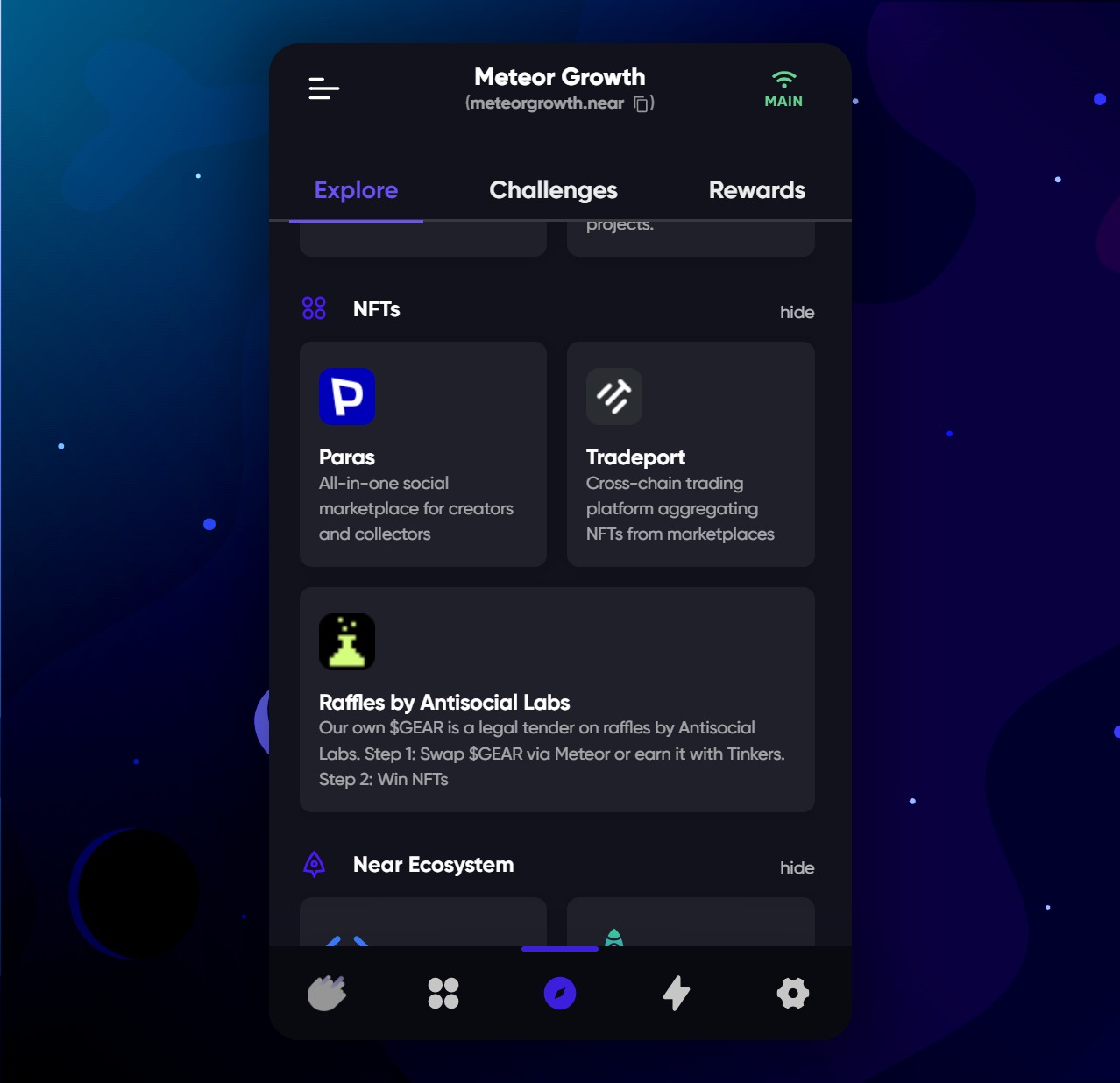
Right now we have featured projects, a DeFi section (with these dApps available to use with Meteor), NFTs and interesting projects and launches from the NEAR ecosystem.

<figure><img src="https://3782409720-files.gitbook.io/~/files/v0/b/gitbook-x-prod.appspot.com/o/spaces%2FTmxucjoGVL8zYh63WhN6%2Fuploads%2F0SvXsHaog96BOGfhgPiT%2F2023-explore-top.jpg?alt=media&amp;token=9931b595-aab7-446f-91ff-f74c54883c0e" alt=""><figcaption><p>Slider with latest challenges and news from Meteor along with trending projects and DApps</p></figcaption></figure>

<figure><img src="https://3782409720-files.gitbook.io/~/files/v0/b/gitbook-x-prod.appspot.com/o/spaces%2FTmxucjoGVL8zYh63WhN6%2Fuploads%2FPJqxDHbJGsiGTZPVRwqz%2F2023-explore-bottom.jpg?alt=media&amp;token=ff9a5041-857d-4d43-95c1-0a5eeb50c2b0" alt=""><figcaption><p>NFT related resources and new applications from across NEAR</p></figcaption></figure>

We’re looking to add a social element to crowdsource content from the Tinker and wider community.

We've also launched [Meteor Challenges](/how-to-learn-and-earn-through-meteor-challenges) with Explore.

<figure><img src="https://3782409720-files.gitbook.io/~/files/v0/b/gitbook-x-prod.appspot.com/o/spaces%2FTmxucjoGVL8zYh63WhN6%2Fuploads%2FsGXZ0kmt4TOrnZnPlAO3%2Fchallenges-home.jpg?alt=media&amp;token=1d983840-8de7-4d16-8c4c-10388e428a58" alt=""><figcaption></figcaption></figure>

Take a look at Meteor Explore now <https://wallet.meteorwallet.app/wallet/explore>


# How To Buy $GEAR - The Native Token Of Meteor

Find out what the utility of $GEAR is, future plans and how to get yourself some!

## **What is $GEAR?**

$GEAR is the currency of the Tinkers.

### **What supports the value of $GEAR?**

50% of the Tinker secondary sales will be used to support the value of $GEAR.

A percentage of the revenue generated from Meteor Wallet will be used towards buying/burning $GEAR

Use-cases for $GEAR such as raffles increase the demand/value of it. And more coming!

### **How To Get $GEAR**

There are three ways you can get $GEAR: buying, swapping in Meteor or earning from staking your NTU NFTs.

1️. Buy/Sell $GEAR at <https://app.perk.money/>

![](https://3782409720-files.gitbook.io/~/files/v0/b/gitbook-x-prod.appspot.com/o/spaces%2FTmxucjoGVL8zYh63WhN6%2Fuploads%2FPJNzenSi6QVVLIEYXP4s%2Fperk-gear.jpg?alt=media\&token=14078e0a-73bc-4b71-ad82-5befb50eef13)

️2. Swap in-wallet at <https://wallet.meteorwallet.app/wallet/swap>

<figure><img src="https://3782409720-files.gitbook.io/~/files/v0/b/gitbook-x-prod.appspot.com/o/spaces%2FTmxucjoGVL8zYh63WhN6%2Fuploads%2FMh1OI52Bf7FypHM2DTrE%2Fswap-gear-meteor.jpg?alt=media&amp;token=2abc7ad5-de0e-46be-826b-7f48d8433136" alt=""><figcaption></figcaption></figure>

See detailed instructions below.

3\. Stake your Tinker and earn $GEAR at <https://tinkerunion.com/stake/>

<figure><img src="https://3782409720-files.gitbook.io/~/files/v0/b/gitbook-x-prod.appspot.com/o/spaces%2FTmxucjoGVL8zYh63WhN6%2Fuploads%2F4IeLyfPVnpSizVoXGFwg%2Fgear-staking.jpg?alt=media&amp;token=da8078a4-6b0e-4562-8841-cde3de51a9ce" alt=""><figcaption></figcaption></figure>

The amount of $GEAR you will earn depends on the rarity of your Tinker NFT.

For $GEAR emission rate, you can refer to this [link](https://docs.google.com/spreadsheets/u/4/d/1FFV7no3o2y5ZRFCS4mzwTAk5zR6aioZZ7-PMDY5Wfqg/edit?usp=sharing).

### **Rarity**

Understand that the rank of your Tinker will effect how much $GEAR token it will earn from staking.

The difference between Rank 1 & Rank 3333 will be 5x.

For exact emission references, go to this google sheet <https://bit.ly/3M67WvF>

### **How To Swap for $GEAR in Meteor**

Head over to the swap section of the wallet.

<figure><img src="https://3782409720-files.gitbook.io/~/files/v0/b/gitbook-x-prod.appspot.com/o/spaces%2FTmxucjoGVL8zYh63WhN6%2Fuploads%2FCJTuOJ8eSGH0MJ7WV2W2%2Ftop-up.jpg?alt=media&amp;token=58aa794b-ccd1-4694-beb1-ed1bdd9ad815" alt=""><figcaption></figcaption></figure>

Select the token and how much you want to swap to $GEAR for.

<figure><img src="https://3782409720-files.gitbook.io/~/files/v0/b/gitbook-x-prod.appspot.com/o/spaces%2FTmxucjoGVL8zYh63WhN6%2Fuploads%2Fc10MjNzaVUCQ7YhjsF35%2Fswap-gear-step-1.jpg?alt=media&amp;token=2a0e8025-b0d8-4af6-8fcb-088859614a96" alt=""><figcaption></figcaption></figure>

You'll see how much $GEAR you will receive, along with price impact.

At Meteor we do not charge any swap fees.

Please note there will be only be one available swap route, $GEAR is only available at Ref Finance currently.

Proceed to Review Swap if all looks good.

You'll be presented with a screen that summarises the swap.

<figure><img src="https://3782409720-files.gitbook.io/~/files/v0/b/gitbook-x-prod.appspot.com/o/spaces%2FTmxucjoGVL8zYh63WhN6%2Fuploads%2Fw7L3XlNANhWzrXkFp5qO%2Fswap-gear-step-2.jpg?alt=media&amp;token=c2d9f86f-6692-4ae8-bad2-703b9648053d" alt=""><figcaption></figcaption></figure>

You can confirm swap and you'll see a swap successful screen. Congratulations! You're now the proud owner of $GEAR.

<figure><img src="https://3782409720-files.gitbook.io/~/files/v0/b/gitbook-x-prod.appspot.com/o/spaces%2FTmxucjoGVL8zYh63WhN6%2Fuploads%2F2vxjGb6TOQECmzsTdMtQ%2Fswap-gear-step-3.jpg?alt=media&amp;token=4b5e91d5-70da-4b98-a4e0-126040b8ad28" alt=""><figcaption></figcaption></figure>


# How To Swap For $NEKO With Meteor

Find out how to swap for NEAR's favourite meme coin.

NEKO is the first community token on NEAR with a focus on creator empowerment.&#x20;

NEKO is on a mission to bring mass adoption to NEAR protocol.

At Meteor we support their mission and want to make it as simple as possible for NEARians to get $NEKO.

Let's get started.

Head over to the swap section of the wallet.

<figure><img src="https://3782409720-files.gitbook.io/~/files/v0/b/gitbook-x-prod.appspot.com/o/spaces%2FTmxucjoGVL8zYh63WhN6%2Fuploads%2FCJTuOJ8eSGH0MJ7WV2W2%2Ftop-up.jpg?alt=media&amp;token=58aa794b-ccd1-4694-beb1-ed1bdd9ad815" alt=""><figcaption></figcaption></figure>

Select UDSC and NEKO and how much you want to swap to NEKO for.

<figure><img src="https://3782409720-files.gitbook.io/~/files/v0/b/gitbook-x-prod.appspot.com/o/spaces%2FTmxucjoGVL8zYh63WhN6%2Fuploads%2FLTtCRQOsvJLAttmYQIv8%2Fneko-swap-1.jpg?alt=media&amp;token=141933b2-31c3-4700-afd0-65c0656f2c23" alt=""><figcaption></figcaption></figure>

You'll see how much $NEKO you will receive including any price impact.

Please note, you'll only see Ref.Finance as that's the only current swap provider for $NEKO.

If you're happy click Review Swap and Confirm Swap on the next screen.

And you're done! MIAO! MIAO!


# How To Have Complete Control With Meteor Wallet

You’ll find a ton of user settings to give you complete control over your NEAR experience with Meteor Wallet.

To access you wallet settings click the gear icon on the far right of the wallet menu.

<figure><img src="https://3782409720-files.gitbook.io/~/files/v0/b/gitbook-x-prod.appspot.com/o/spaces%2FTmxucjoGVL8zYh63WhN6%2Fuploads%2FdDyVxZxGRimwSX7xWuq3%2Fsettings.jpg?alt=media&amp;token=0754dc48-1c91-4633-bdba-b6438e0f7cad" alt=""><figcaption></figcaption></figure>

Let’s run through each setting.

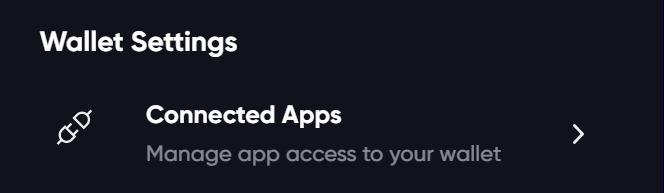
### Connected Apps

This allows you to monitor and deauthorize connected apps with ease.&#x20;

Browse our guide [How To Manage App Access To Your Wallet](/wallet-settings/how-to-manage-app-access-to-your-wallet).

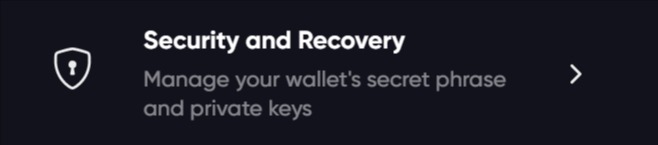
### Security and Recovery

We make it super simple and secure to view your secret/seed phrase, export your private key and manage your full access keys.

Check our guide to [easy recovery for seed phrases and private keys](/wallet-settings/easy-recovery-for-seed-phrases-and-private-key).&#x20;

### Change Password

Your password is used to unlock your wallet.&#x20;

Changing this regularly is advised and you can do this here.

### Remove Account

Looking to remove an account? You can do this from this setting. Just be sure you have your secret phrase or key so you can import it again if needed. The remove account is irreversible.

<figure><img src="https://3782409720-files.gitbook.io/~/files/v0/b/gitbook-x-prod.appspot.com/o/spaces%2FTmxucjoGVL8zYh63WhN6%2Fuploads%2FBbVCeKqIWV3qTcNc6Y4a%2Fremove-account.jpg?alt=media&amp;token=653e77d8-65e0-4e10-a12c-69893670fc5a" alt=""><figcaption></figcaption></figure>

### Meteor Community

We've love for you to join our growing community.

* Join [Meteor on Twitter](https://twitter.com/MeteorWallet).
* Join [Near Tinker Union on Twitter](https://twitter.com/NearTinkerUnion).
* Join us on [Discord](http://discord.gg/9D5V5j5nWr).

### Change Your Language

You can click the language icon and choose English, French, Bahasa Indonesian, Mandarin or Vietnamese.

<figure><img src="https://3782409720-files.gitbook.io/~/files/v0/b/gitbook-x-prod.appspot.com/o/spaces%2FTmxucjoGVL8zYh63WhN6%2Fuploads%2FsOiVT64nZDIfsoayAawB%2Flanguage.jpg?alt=media&amp;token=6a452778-33e3-4158-8a3b-48109a6155f1" alt=""><figcaption></figcaption></figure>

### Switch To Dark Mode or Light Mode

Click the light bulb to switch on Light Mode. Toggle it back to dark mode by clicking the moon icon.

<figure><img src="https://3782409720-files.gitbook.io/~/files/v0/b/gitbook-x-prod.appspot.com/o/spaces%2FTmxucjoGVL8zYh63WhN6%2Fuploads%2FCWFz0KrdpJhljLZHmO2U%2Flight-mode.jpg?alt=media&amp;token=b3548050-8b7c-4095-a0bc-9c0df490a5b7" alt=""><figcaption></figcaption></figure>

<figure><img src="https://3782409720-files.gitbook.io/~/files/v0/b/gitbook-x-prod.appspot.com/o/spaces%2FTmxucjoGVL8zYh63WhN6%2Fuploads%2FFWpnqBBhHCnrVzu3pX9n%2Fdark-mode.jpg?alt=media&amp;token=8ec76164-f4da-4aff-bd57-64588507efa0" alt=""><figcaption></figcaption></figure>


# Wallet Label

This setting allows you to give any of your wallets a custom label of your liking.

This could be useful if you have a traditional type crypto wallet, full of numbers and letters - not very memorable!

In the example below I’ve changed the default wallet label from the initial wallet name (meteor-wallet-demo) to something more readable, and without hyphens - ‘Meteor Demo’.

Your actual wallet address remains the same as before - in this case, ‘meteor-wallet-demo.near’.

<figure><img src="https://3782409720-files.gitbook.io/~/files/v0/b/gitbook-x-prod.appspot.com/o/spaces%2FTmxucjoGVL8zYh63WhN6%2Fuploads%2F1HNbpZKfSvnRLeyoa7hD%2Fwallet-label.jpg?alt=media&amp;token=0cba4059-2a7b-4104-8a8d-cf092c42841e" alt=""><figcaption></figcaption></figure>

To change your wallet label which is also your Meteor Profile name, head to the Settings section.

<figure><img src="https://3782409720-files.gitbook.io/~/files/v0/b/gitbook-x-prod.appspot.com/o/spaces%2FTmxucjoGVL8zYh63WhN6%2Fuploads%2FdDyVxZxGRimwSX7xWuq3%2Fsettings.jpg?alt=media&amp;token=0754dc48-1c91-4633-bdba-b6438e0f7cad" alt=""><figcaption></figcaption></figure>

Click your existing name at the top.&#x20;

Enter your profile name (wallet label).

Find out more about [updating your Meteor Profile](/meteor-guides/create-your-meteor-profile-with-near-social-integration) and how it synchs with Near Social.


# Easy Recovery For Seed Phrases and Private Key

We make it super simple and secure to view your secret/seed phrase, export your private key and manage your full access keys.

Your security is paramount with everything we do at Meteor.&#x20;

Presenting ways for you to manage your secret phrase and keys is a key part of this.&#x20;

All of these options are available in the Security and Recovery section of the wallet.

To find it, visit the Settings page via the gear icon on your menu.

<figure><img src="https://3782409720-files.gitbook.io/~/files/v0/b/gitbook-x-prod.appspot.com/o/spaces%2FTmxucjoGVL8zYh63WhN6%2Fuploads%2FdDyVxZxGRimwSX7xWuq3%2Fsettings.jpg?alt=media&amp;token=0754dc48-1c91-4633-bdba-b6438e0f7cad" alt=""><figcaption></figcaption></figure>

Click Security and Recovery.

<figure><img src="https://3782409720-files.gitbook.io/~/files/v0/b/gitbook-x-prod.appspot.com/o/spaces%2FTmxucjoGVL8zYh63WhN6%2Fuploads%2FOetv5cvsVvo5HMxSDYEx%2Fseeds-keys-in-settings.jpg?alt=media&amp;token=58fddea6-30a0-4012-88d2-4f571fc28645" alt=""><figcaption></figcaption></figure>

You'll see the three relevant options available to you.

<figure><img src="https://3782409720-files.gitbook.io/~/files/v0/b/gitbook-x-prod.appspot.com/o/spaces%2FTmxucjoGVL8zYh63WhN6%2Fuploads%2FWPSsNhClcJYlRHLjEGyf%2Fsecurity-three-options.jpg?alt=media&amp;token=d1c286a9-2257-440b-8dca-d9bf43e19a74" alt=""><figcaption></figcaption></figure>

Let's walk you through each one - starting with:

### View Secret Phase

Before you can access this, you'll need to enter your Wallet password.

Once you've done this you'll be able to view your Secret Phrase.

This is super useful if you need to retrieve your secret phase.&#x20;

You should always securely store your secret phase, either in a password manager but preferably written down on a piece of paper.

<figure><img src="https://3782409720-files.gitbook.io/~/files/v0/b/gitbook-x-prod.appspot.com/o/spaces%2FTmxucjoGVL8zYh63WhN6%2Fuploads%2FillPcsie2vQm8Vr9v1SU%2Fview-secret-phase.jpg?alt=media&amp;token=61f221f1-fdce-4f24-a416-800291946820" alt=""><figcaption></figcaption></figure>

### Export Private Key

Before you can access this, you'll need to enter your Wallet password.

Similar to retrieving your Secret Phrase, this option lets your Export your private key.

As always, be extremely careful how you store and share this. It allows access to your wallet account.

<figure><img src="https://3782409720-files.gitbook.io/~/files/v0/b/gitbook-x-prod.appspot.com/o/spaces%2FTmxucjoGVL8zYh63WhN6%2Fuploads%2Fhoayk5VBbBdkiWKfXfQL%2Fexport-key.jpg?alt=media&amp;token=a6967bf8-0e9d-49e3-94ef-92fc6527a90c" alt=""><figcaption></figcaption></figure>

### Manage Full Access Keys

Before you can access this, you'll need to enter your Wallet password.

This a powerful feature allowing you to view, label and rotate your private keys.

To add a new access key, select the option at the top.

<figure><img src="https://3782409720-files.gitbook.io/~/files/v0/b/gitbook-x-prod.appspot.com/o/spaces%2FTmxucjoGVL8zYh63WhN6%2Fuploads%2FeuKf5AqfTtRIJiJ3XpbE%2Fadd-new-access-key.jpg?alt=media&amp;token=18a7b1f1-f785-4107-b03f-a3cbff41d43d" alt=""><figcaption></figcaption></figure>

This will generate a new seed phrase recovery key for your wallet.

For each of your keys you'll see useful information if it's the primary key, the public key and any links through to the Private Key and Secret Phrase if available.

You also have the option to revoke access for keys.

<figure><img src="https://3782409720-files.gitbook.io/~/files/v0/b/gitbook-x-prod.appspot.com/o/spaces%2FTmxucjoGVL8zYh63WhN6%2Fuploads%2Fz7D1o3mNDaYFAemPNOzI%2Ffull-access-keys.jpg?alt=media&amp;token=9ba46ed1-9f19-43a8-a35e-e06dcf6d65c2" alt=""><figcaption></figcaption></figure>


# How To Manage App Access To Your Wallet

Monitor and deauthorize connected apps with ease.

Over time you will find yourself connecting to a multitude of apps.

With Meteor we make it super easy to manage app access to your wallet.

Head to your Settings page by clicking the gear icon in the main menu.

<figure><img src="https://3782409720-files.gitbook.io/~/files/v0/b/gitbook-x-prod.appspot.com/o/spaces%2FTmxucjoGVL8zYh63WhN6%2Fuploads%2FdDyVxZxGRimwSX7xWuq3%2Fsettings.jpg?alt=media&amp;token=0754dc48-1c91-4633-bdba-b6438e0f7cad" alt=""><figcaption></figcaption></figure>

Select Connected Apps.

<figure><img src="https://3782409720-files.gitbook.io/~/files/v0/b/gitbook-x-prod.appspot.com/o/spaces%2FTmxucjoGVL8zYh63WhN6%2Fuploads%2FYJ62qUDQbyc2CDogsBxW%2Fconnected-apps.jpg?alt=media&amp;token=0f4bc2ad-f98c-425c-a471-5533c1c0dd33" alt=""><figcaption></figcaption></figure>

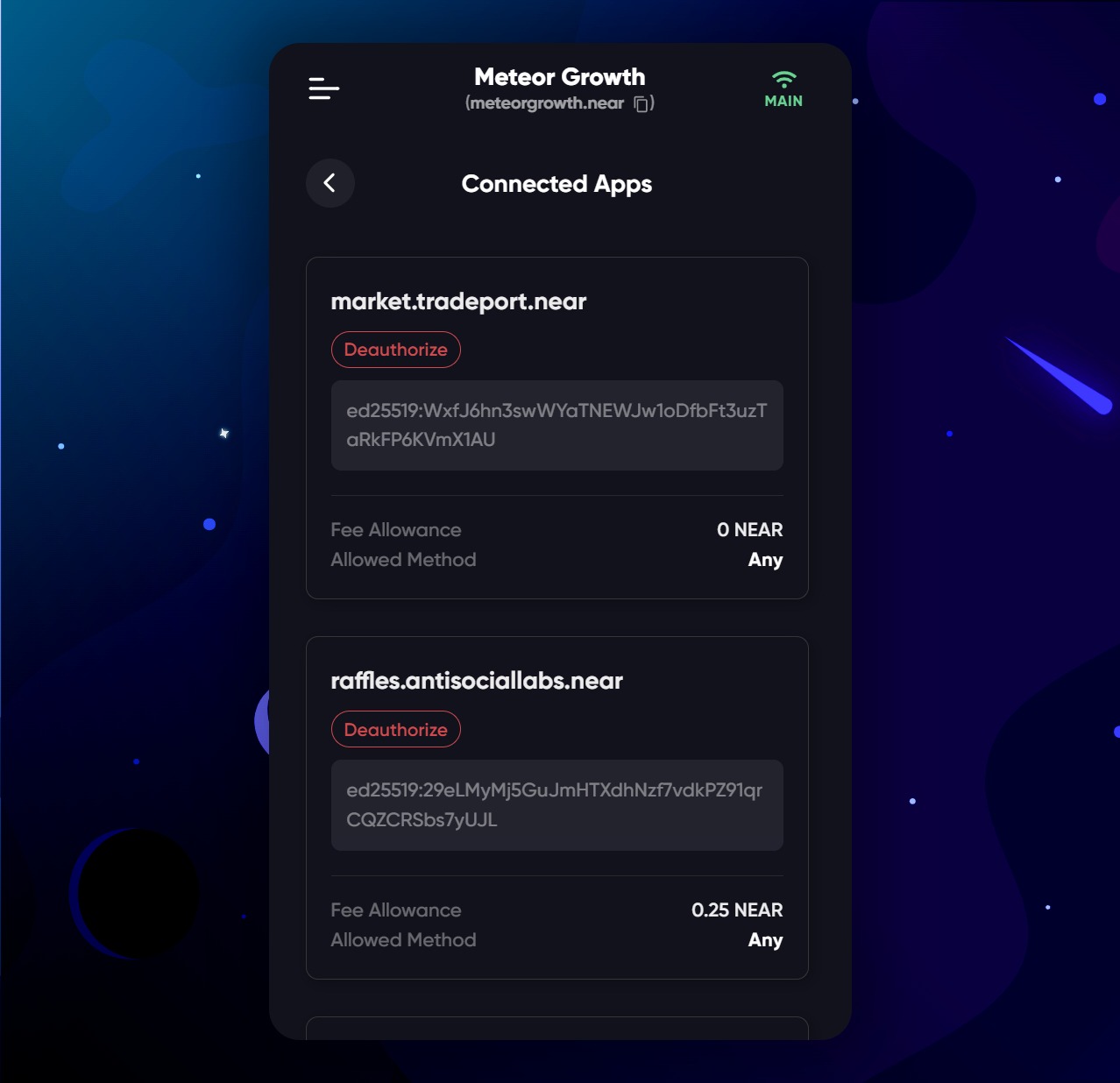
Scroll to see all of the apps that are connected to your wallet.

This will also include important information such as Fee Allowance.

<figure><img src="https://3782409720-files.gitbook.io/~/files/v0/b/gitbook-x-prod.appspot.com/o/spaces%2FTmxucjoGVL8zYh63WhN6%2Fuploads%2Fr98d6Jl19XkGTCx1bnhG%2Flist-of-connected-apps.jpg?alt=media&amp;token=19d9e43a-484f-417b-a531-284bdb6f3b46" alt=""><figcaption></figcaption></figure>

Simply click Deauthorize any app you wish to be disconnected from your wallet.


# How To Turn On Dark Mode

We know many of you love dark mode!

To turn it on - simply scroll to the bottom of the Settings menu and click the moon icon.

To turn it off (and toggle back to light mode) simply click it again.

### Light Mode

<figure><img src="https://3782409720-files.gitbook.io/~/files/v0/b/gitbook-x-prod.appspot.com/o/spaces%2FTmxucjoGVL8zYh63WhN6%2Fuploads%2FCWFz0KrdpJhljLZHmO2U%2Flight-mode.jpg?alt=media&amp;token=b3548050-8b7c-4095-a0bc-9c0df490a5b7" alt=""><figcaption></figcaption></figure>

### Dark Mode

<figure><img src="https://3782409720-files.gitbook.io/~/files/v0/b/gitbook-x-prod.appspot.com/o/spaces%2FTmxucjoGVL8zYh63WhN6%2Fuploads%2FFWpnqBBhHCnrVzu3pX9n%2Fdark-mode.jpg?alt=media&amp;token=8ec76164-f4da-4aff-bd57-64588507efa0" alt=""><figcaption></figcaption></figure>